


|
A COURSE IN
BASIC PROGRAMMING
by
Hugo Davenport
page 1
CHAPTER 1
INTRODUCTION
page 3
INTRODUCTION - READ CHAPTER TWO FIRST!
This book is the user's manual for the ZX-80 personal computer. In it is everything you need to know in order to set up the ZX-80 hardware and to use the ZX-80 BASIC language for writing your own programs.
For most of the book the chapters are grouped in pairs. The first. (odd-numbered) chapter of a pair is purely descriptive and prepares the reader for what is covered in the second (even-numbered) chapter of the pair. The second chapter of a pair is intended to take you through the use of ZX-80 BASIC as painlessly as possible while you're actually sitting at the keyboard.
If you are an experienced BASIC user, you won't need to read very much - probably only chapter 2, the ZX-80 BASIC language summary, and the Index.
If you're less experienced and patient, it's probably best to read through the whole book, chapter by chapter. If you're less experienced but impatient you can skip the odd numbered chapters 3, 5, 7, and 9 (and probably will!).
OK. NOW READ CHAPTER TWO - AGAIN! |
|
page 5
CHAPTER 2
GETTING STARTED
page 7
GETTING STARTED
This is the most important chapter in the book. It tells you how to connect up and switch on your ZX-80.
The ZX-80 consists of two units:
(1) The computer
(2) The power supply
The power supply used should be 9 volts DC @ 600 mA unregulated, terminated with a 3.5 mm jack plug. The tip of the jack plug must be positive.
DON'T PLUG IN TO THE MAINS SUPPLY YET
Look at the back of the ZX-80 computer. You will see four sockets. Three of these are 3.5 mm jack sockets marked MIC, EAR and POWER. The fourth is a phono socket for the video cable.
The connection diagram shows how to connect up the ZX-80 to the power supply and to a domestic television which will be used to display the output for the ZX-80. |
A video cable with a coaxial plug at each end is provided to connect the TV to the computer.
A twin cable with 3.5 mm jack plugs at both ends is provided to connect the ZX-80 to a cassette recorder. Don't worry about this for the moment.
Connect the power supply to the ZX-80 by plugging the 3.5 mm jack plug into the socket marked 9V DC IN (if you do get it in the wrong jack socket you won't damage your ZX-80 even if you switch on the power. It won't work until you get the plug in the right socket, though!)
SEE DIAGRAM
Connect the TV using the coax lead provided. You will have to tune the TV to the ZX-80 frequency, approximately channel 36 on UHF, so check that you can do this - most TV sets either have a continuously variable tuning control or, if they select channels with push-buttons, have separate tuning controls for each channel. If your set is a push-button set select an unused channel (ITV 2, perhaps). Turn down the volume control.
OK - we can't put off the moment of truth any longer!
Switch on the TV.
When it has warmed up...
SWITCH ON THE ZX-80. |
page 9

page 10
You will be disappointed to see a horrible grey mess on the screen!!
Try tuning in the TV set. At some position of the tuning control the screen will suddenly clear. At the bottom left hand corner of the screen you will see a curious symbol - a black square with a white letter K in it.
If you can't see the K, turn the brightness control up until you can see it; you may find that adjusting the contrast control improves legibility. You may be planning to use your ZX-80 a lot. If so it may be worth considering buying a second-hand black-and-white TV to use with the ZX-80, They can be bought cheaply - in the UK, at least.
STORING PROGRAMS ON TAPE
Before you can store programs on tape you'll have to write a program, The rest of this book is all about writing programs, so the first thing to do is to read on until you've got a program to store...
...and now that you have we can start.
The twin coax cable with 3.5 mm jack plugs is used to connect the tape recorder to the ZX-80. Most cassette recorders have 3.5 mm jack sockets |
for MICROPHONE and EARPIECE. If you have one of those, just connect the 3,5 mm jack plugs as shown in the diagram. On other recorders DIN sockets are used. DIN plug to 3.5 mm jack plug connecting leads are available from most Hi-Fi shops. Consult the handbook to find out how to connect up the plug or plugs.
Once you have done this, connect up the cassette recorder to the ZX-80. Set the tone control (if any) to MAX IMUM. Some recorders have separate TREBLE and BASS control. In this case set TREBLE to MAXIMUM, BASS to MINIMUM. Set the volume control to MAXIMUM.
Have you got that program?
Unplug the MIC plug or DIN plug from the recorder and use the recorder's microphone to record the program's title; if you haven't recorded your voice saying the program's title, you will have trouble in finding programs when you've got a lot of them on tape. Stop the recorder. Reconnect the plug to the recorder. Get into command mode. Start recording and then type SAVE (E key) and NEWLINE.
The screen will go grey for about 5 seconds, then you'll see a series of horizontal streaks |
page 11
across the screen. After a few seconds the screen will clear and will show the program listing.
You will want to check that the program has been SAVED. Unplug the EAR plug. Rewind the tape until you get back to your voice. Now play back. You will hear your title, then you may (or may not) hear a short buzz followed by about 5 seconds of silence. You will then hear a peculiar sound, rather like a supercharged bumble bee. This is the program being played back via the loudspeaker. After a while the sound will change to a loud buzz. Rewind until you are at the beginning of the 5 second silence. Reconnect the EAR plug. Start playing back and then type LOAD (W key) NEWLINE. The screen will go grey or black and after a few seconds it may start looking grey but agitated. After a few more seconds the screen should clear to show a listing of the program.
Note: when you SAVE a program y.ou also SAVE all the data and variables. You can avoid deleting these (RUN clears them) by using the command GO TO 1.
If it doesn't, use BREAK (SHIFT SPACE) to stop LOADING. If this doesn't work, unplug the power from the ZX-80 for a few seconds. Try repeating the procedure using different |
volume control settings. If this doesn't work, are you using the cassette recorder on mains power? Try again using battery power. If this fails, check the wiring to MIC and EAR.
On the ZX-80 some cassette recorders will not work properly with both jacks plugged in at the same time. You can usually tell if yours is one of these by observing that there is a signal (self oscillation) during the 5 second "silence". To SAVE on these recorders you should connect only from the computer to the cassette recorder external MIC socket. To LOAD connect only from the computer to the cassette recorder EAR socket.
Good luck! |
page 12
CHAPTER 3
page 13
NOT SO BASIC
Nearly all digital computers (such as the ZX-80) talk to themselves in binary codes. We talk to each other in English. This means that either we have to learn binary codes, or we have to teach the computer English. Binary codes are about as difficult to learn as Chinese, but it can be done. Forty years ago you had to learn them if you wanted to use a digital computer at all. But why should we do the work when we‘ve got a computer to do it for us?
So we teach the computer English. There is a snag, though. Computers, so far, aren’t bright enough to learn English, something which a child of two does relatively easily. This is mainly because we have so many words and ways of saying things in English. A computer would have to learn every single one. We have to compromise half-way between binary and English. Sometimes we compromise at a low level by using assembly codes which are more like binary than English. Sometimes we compromise at a high level by using languages such as ALGOL, PL/1, PASCAL, FORTRAN, and BASIC. These languages are much closer to English than binary. The ZX-80 uses BASIC because it is easy to learn and more than adequate for most purposes. BASIC stands |
for Beginner's All-purpose Symbolic Instruction Code and was devised at Dartmouth College, New Hampshire in 1964 as a simple beginners' programming language. Although it was intended just for beginners, it has since become one of the most widespread and popular high level languages. This isn't very surprising when you think about it, because even scientists and engineers prefer to concentrate on science and engineering instead of trying to talk to computers in complex and difficult languages.
Like English, BASIC has a variety of dialects, depending on which computer is being used. The ZX-80 BASIC differs from other BASIC's in some respects. These differences are listed in the appendix "Summary of ZX-80 BASIC" at the end of this book.
As we said before, computers aren't that bright. We have to tell them exactly what to do by giving them a step-by-step list of instructions. This is called a program. Each instruction must be given in a clear and un-ambiguous way - the syntax must be right (in ZX-80 BASIC the computer will tell you if it thinks that the syntax is wrong before you can run the program. Some BASIC'S wait until you’ve tried to run the program before they say "nuts!"), Even if the |
page 15
syntax is right, the computer will be confused if you give it a badly thought out list of instruc-tions. Chapters 5 and 7 give some ideas for making sure that you’re telling the computer to do the right things in the right order.
STATEMENTS AND COMMANDS
ZX-80 BASIC allows you to use 22 instructions or statements.
These are divided into several categories.
1. System commands:
NEW - Clears ZX-80 ready for a new
program
RUN - Runs the current program
LIST - Lists the current program
LOAD - Loads a program from tape
SAVE - Saves a program on tape
2. Control statements:
GOTO
IF... THEN...
GOSUB
STOP
RETURN
|
FOR... TO
NEXT
CONTINUE
These statements allow the programmer to control the order in which instructions are carried out. They are described in detail in chapters 7 - 10.
3. Input/Output statements;
PRINT - allows computer to output data
INPUT - allows user to enter data
I/0 statements provide a means for getting data into and out from BASIC programs.
4. Assignment statement;
LET...=...
This versatile statement is used whenever an arithmetic operation is to be performed.
5. Other statements:
CLEAR - clears the stored values of
variables
CLS - clears the screen
DIM - sets the size of an array
REM - indicates that what follows is a
remark
|
page 16
RANDOMISE - sets up random number
generator
POKE - allows user to talk to the com-
puter in binary code
There are some normal BASIC statements which are not included in ZX-80 BASIC. These are:
READ
DATA
RESTORE
END
ON
Nearly everything that can be done by using these statements can be done in ZX-80 BASIC by using other statements. (The END statement is not needed at all in ZX-80 BASIC).
In a BASIC program all statements or lines are preceded by a statement number or line number which labels that particular line. Line numbers can vary between 1 and 9999. The computer carries out, or executes, statements in the order in which they are numbered. It makes life easier by always displaying programs in order of increasing statement numbers, so that the order in which the program is listed is also the order in which it would be executed. |
VARIABLES
All the pieces of information stored in the computer for use in a program are labelled so that the computer can keep track of them, Each piece of information, or variable, has a name.
There are two sorts of variable:
1. Numbers (integer variables) which can take
any whole number value from - 32768 to
32767 inclusive. Example: 142
2. Strings which can be any sequence of any
characters (except " ) of any length.
Example: "AROUND THE WORLD IN 80
DAYS"
Integer variables have names which must always start with a letter and only contain letters and digits.
Integer variable names can be any length, so if you wish the name could be a mnemonic for the variable.
Some allowable variable names for integer variables are:
A A2 AB AB3 ANSWER A4X
Y Y8 YZ YZ9 FREDBLOGGS (N.B. no
space).
AAAA Z123ABC QTOTAL |
page 17
Some illegal names are:
4 4 4AD (name must start with a
letter)
FRED BLOGGS (space not allowed)
A.B(other characters not
allowed)
FRED-BLOGGS (not a variable, but two
variables, one subtracted from the other)
String variables have names of the form: letter $
The dollar sign tells you (and the computer) that the variable is a string variable. Because only one letter is allowed, this means that you can only have up to 26 string variables in a program.
Some allowable names for string variables:
A$ P$ X$
Some illegal names:
2$ (name must start with letter)
A2$ (too many characters)
AC$ (too many characters)
All this may seem a little daunting at first. The good news is that, like so many things, it's easier than it sounds. |
Notes: (1) Arrays must have a name consisting
of a single letter.
(2) Control variables (see Chapter 10)
must have a name consisting of a
single letter.
|
page 18
CHAPTER 4
page 19

The Keyboard
page 21
LET'S TALK
Set up the computer as described in chapter 2 and switch on. You will see a  sign appear at the bottom left hand corner of the screen. This is the cursor and shows you where you are on the screen. sign appear at the bottom left hand corner of the screen. This is the cursor and shows you where you are on the screen.
THE KEYBOARD
If you look at the keyboard you will see that it looks quite like a typewriter keyboard but there are some differences. There is no carriage return key (instead there's a key called NEW LINE) and the space bar is replaced by a key labelled SPACE. All the letters are upper case (capitals) so that if you use the SHIFT key you get the symbol printed on the top right hand corner of the key. You'll also notice that quite a lot of keys have labels above them - such as NEW above the Q key. These will save you a lot of time from now on.
One vital point: it is very important to dis-tinguish between the letter 0 and figure 0 or Zero. In the book we will use 0 to mean letter 0 and Ø to mean zero. On the screen the com-puter uses' a square O [ ] for letter O and a ] for letter O and a |
hexagonal 0 [ ] for zero. (The reason that we've used Ø in the book is because it is easier for printing and because all other books on programming use it). ] for zero. (The reason that we've used Ø in the book is because it is easier for printing and because all other books on programming use it).
SINGLE-KEY KEYWORD SYSTEM
Hit the Q key. Amazing! The computer writes NEW on the screen. Now hit NEWLINE. You have cleared the computer ready to accept a new program. This illustrates the single-key keyword system. Most of the words you'll have to use with ZX-80 BASIC can be typed with only one keystroke in this way. In all this may save you up to 40% of the typing you'd otherwise have to do. Some BASIC's allow you to use single key-strokes to input words like NEW, PRINT, RUN etc but only the ZX-80 prints out the word in full. This makes it much easier to keep track of what's going on in programs. You'll see how it works as you go along.
The labels above the numeral keys - NOT, AND etc - are not keywords. They are called tokens and, when needed, are obtained by using the SHIFT key. This also applies to EDIT on the NEWLINE key. |
page 22
Getting data in and out of the ZX-80 computer.
The PRINT. statement allows you to get data out of the computer. This can be done while a program is running - or afterwards.
Type exactly: 100 "THIS IS A STRING"
using SHIFT Y for"
That should have come out as
10 PRINT "THIS IS A STRING"
The computer provided the word PRINT, as well as the space between 10 and PRINT. Did you notice what happened to the cursor? First of all, it followed what you were typing in, appearing just after the last character typed. After PRINT it changed to a  sign - this showed that the computer was not expecting any more single-key keywords just then. After you typed " you may have noticed that another character appeared as well - a sign - this showed that the computer was not expecting any more single-key keywords just then. After you typed " you may have noticed that another character appeared as well - a  sign. What was actually on the screen was sign. What was actually on the screen was
10 PRINT "
This S is the syntax error marker and occurs if there is a syntax error in the line being typed in. In this case it came up because the line needs the closing quotation marks if it is to be |
correct. The followed the cursor as you typed in THIS IS A STRING and vanished when you typed the second ". Now erase the " by using the RUBOUT key. The reappears. Try hitting the NEWLINE key - nothing happens because the computer won't accept a line containing a syntax error.
Type " and hit the NEWLINE key.
The computer accepts the line and displays it at the top of the screen together with a  cursor which shows that it is the last (and in this case the first) line entered. The points to the current line. cursor which shows that it is the last (and in this case the first) line entered. The points to the current line.
Although there is only one line entered it is a program consisting of only one instruction. Type R (RUN) and NEWLINE and the program will run - after a brief flicker on the screen the words
THIS IS A STRING
appear at the top of the screen. At the bottom you'll see 0/10 which tells you that the program ran successfully with no errors.
Type any key to get back into command mode.
What the computer did was to print all the -characters between the quotation marks. Any |
page 23
character (except for quotation marks) is legal when PRINT is used in this way.
In general this form of the PRINT statement is useful for things like titles which only have to be printed once in a program. There are other forms which allow more complicated things to be done; you'll come across these the whole way through this book.
Now let's try getting some data into the com-puter. This is done by using the INPUT statement, which is basically of the form:
INPUT variable name.
Hit NEW (key Q) and NEWLINE. This tells the computer that a new program is being entered.
Type in the following program, using NEWLINE at the end of each line. (If you make a mistake, use SHIFT 0 (RUBOUT) to delete the mistake; every time you hit RUBOUT the character, keyword, or token to the left of the cursor is deleted).
10 PRINT "ENTER YOUR STRING" 20 INPUT A$ (A$ is the name of a string variable) 30' PRINT A$ (You can use PRINT to print out a variable)
Now run the program by typing RUN (key R) and NEWLINE. |
The computer responds with
ENTER YOUR STRING
""
and waits. The "L" means that it is waiting for you to do something; in this case the quotation marks show that is is expecting you to enter a string variable.
Type in a short message or random string of letters (don't use quote marks) and press NEWLINE, The computer prints out what you have just put in, which was a string variable called A$.
Get back into command mode by pressing any key. Try running the program several times using more and more characters in your string. Keep an eye on the cursor. On the 15th line it will vanish. RUBOUT (shift 0) - the cursor will reappear. Now carry on adding characters - the display will gradually get SMALLER as you use up the storage capacity of the processor. Now hit NEWLINE - a 4/20 error message appears. The 4 tells you that the ZX-80 ran out of space to put the string variable into, and the 20 tells you that this happened at line 20 of the program.
Get back into command mode. |
page 24
You may have wondered why the line numbers have been 10, 20, 30 instead of (say) 1, 2, 3.
This is because you may want to add bits to the middle of your program.
For instance, enter
22 PRINT "ENTER A NUMBER" 24 INPUT A 40 PRINT A
The program displayed at the top of the screen now reads
10 PRINT "ENTER YOUR STRING" 20 INPUT A$ 22 PRINT "ENTER A NUMBER" 24 INPUT A 30 PRINT A$ 40 PRINT A
because the computer always sorts out the lines in numerical order. By leaving gaps between line numbers you can always do this. It also makes it easy to see how you've altered the program since the original lines will have line numbers in multiples of 10 (unless the lines were added at the end of the program, like statement 40). Now try running the program again. |
FIRST it asks you for a string, Enter a string.
THEN it asks you for a number. Notice that when the ZX-80 is waiting for you to enter a number it displays and not "". Enter a number.
FINALLY it prints out what you put in.
In chapter 3 the difference between string variables and integer variables is mentioned. The program has two variables in it - a string variable A$ and an integer variable A. How does the computer react when you give it a different sort of variable to the one that it's expecting?
Easy enough to find out - just run the program again. When the computer asks you for a string, give it a number. What happened? It was accepted - numbers are acceptable inside strings. Now - when it asks you for a number, type in a letter. Nothing much happened except that 2/24 appeared at the lower left hand corner of the screen. This is another error code. The 2 stands for the type of error - VARIABLE NAME NOT FOUND - because the computer knew that the letter was the name of an integer variable and you hadn't assigned a value to it. The 24 stands for the line number at which the error was found. |
page 25
EDITING PROGRAMS
Suppose that you want to alter something in a program that you've already entered. (This is called editing a program.)
It's easy on a ZX-80.
Get into command mode.
Look at the listing at the top of the screen. The cursor (current line pointer) is at line 40. Now see what happens when you hit SHIFT 7 ( ) a few times - the cursor moves up line by ) a few times - the cursor moves up line by
line. SHIFT 6 ( ) moves it down line by line. ) moves it down line by line.
These keys allow you to select any line in your
program to edit.
A further key, HOME (SHIFT 9) sets the line pointer to line 0. Because there isn't a line 0 the cursor will vanish if you use HOME - but when you hit SHIFT 6 the cursor will jump to the next line -,in this case line 10 - and reappear.
Select a line - line 22 for example.
Now hit SHIFT NEWLINE, Line 22 (or any other one you might have selected) appears at the bottom of the screen.
Try SHIFT 8 ( ) - you'll see the cursor jump past PRINT. SHIFT 5 ( ) - you'll see the cursor jump past PRINT. SHIFT 5 ( ) moves the cursor left, ) moves the cursor left, |
to where it was before. Try moving the cursor right a few times - say to the position after ENTER. Now type a few A's - they are inserted into the string to the immediate left of the cursor. A few RUBOUTS and you can erase them again.
This editing facility is very useful if you want to alter individual characters within lines. However, if you want to delete a whole line it would be rather tedious to go through the procedure mentioned above. There is a simpler way to delete lines, though.
Type the line number, then NEWLINE - and you'll see the line vanish from the listing at the top of the screen. The cursor > will also vanish. It will not reappear until you type a new line, use the control keys Ø and g, or use the LIST command.
THE LIST COMMAND
As you get more experienced with the ZX-80 you'll want to write programs longer than the 24 lines which will fit onto the screen. This could pose a problem - or could it? We can find out by writing a really long program.
Type NEW then NEWLINE. |
page 26
Enter the following program (which prints a large number of blank lines).
10 PRINT 20 PRINT 30 PRINT 40 PRINT ...and so on to... 230 PRINT (keep an eye on the listing in the upper part of the screen) 240 PRINT 250 PRINT 260 PRINT
We seem to have lost the first few lines. Or have we?
Hit LIST (key A) fallowed by NEWLINE - the program is now displayed from line 10 down.
Now try LIST 200 - the program is displayed from line 200. You can list the program starting from any line you want in this way. Notice that the current line cursor is altered to the line you selected.
Try using the up/down cursor control keys - go on hitting the key and see what happens. |
In this way you can display any part of the program you want.
By now you will have realised that the ZX-80 has some powerful (and very convenient) facilities to help you write programs.
From now on we can concentrate on how to write programs which actually do something - like solving arithmetic problems, for instance. |
page 27
CHAPTER 5
page 29
SO YOU'VE GOT PROBLEMS
People are very good at disentangling confused instructions and solving complex problems. A computer isn't - all it can do is to follow a list of instructions and carry out the instructions as it comes to them.
As an example, take the following instructions which a mother might give to her child:
"Could you run down to the shop and buy some bread? Take 50p which is in my purse on the kitchen table. And for goodness sake get dressed!"
It all seems quite clear; the child knows where to go, what to buy and where the money is.
A computer controlled robot would take the first instruction:
run down the shop, and do that.
The second instruction: buy some bread. It can't do that (no money) and at this stage would probably just stop, baffled.
The third instruction: take 50p from the purse, it can't do that.
The fourth instruction: go to the kitchen table. It returns home and goes to the kitchen table. |
Then the fifth instruction: get dressed. It gets dressed.
A child would instinctively carry out the instruc-tions in the following order:
1. Get dressed
2. Go to the kitchen table
3. Take 50p from the purse
4. Go to the shop
5. Buy some bread
He or she would come back home!
The mother in this example missed out one vital instruction ("come home") as well as putting the instructions in an illogical order. Children use commonsense to interpret complex instructions, but computers can't do this. You have to do all the thinking in advance when you use a computer. So remember:

One way of making sure that you are thinking straight is by drawing a flow diagram before you start to do any actual programming. This helps you get things,in the right order to begin with. |
page 31
The flow diagram for the example above would look like this:

Each box contains an instruction, and the arrows show the order in which the instructions are executed. Well, that looks pretty simple and neat. Now that the flow diagram is drawn on paper we can check it by going through the boxes one by one and asking ourselves: Can the child (or the computer) do this?
Starting with the first box (get dressed) we might think that it's pretty basic. On the other hand, the child may not be able to find his clothes because his naughty sister has thrown them out of the bedroom window. Perhaps we should add |
an instruction (find clothes) at the beginning of the program.
Go to the kitchen table: well, that looks OK.
Take 50p from purse: what happens if the purse is empty?
Go to the shop: does the child know where the shop is?
Buy some bread: what sort?
Return home: nothing much wrong with that!
Maybe the flow diagram wasn't as good as we thought. Even simple tasks can turn out to be more complicated than we think.
Most of the problems which we've spotted are due to a lack of information and this can be coped with by adding extra instructions at the beginning of the program. These could include:
1. Ask where the shop is 2. Find clothes
When you are writing programs for the ZX-80 it is particularly important to give the computer all the information it needs before it has to carry out a task. For instance, if you ask it to PRINT a variable the computer must know the value of the variable.
Now for some arithmetic. |
page 32
CHAPTER 6
page 33
FINDING THE ANSWERS
Up to now you've just been getting used to the feel of the computer. Now we‘ll actually use the computer to do a few sums.
THE LET STATEMENT
Nearly all arithmetic operations are done by using the LET statement. It is of the form
LET variable = expression.
In this case the variable (which can have any name you assign to it) is what you want to find out. The expression describes how you want to define the variable.
For instance
LET A = 2+4
variable expression
means "add 2 to 4 and set A equal to the result
(6) ".
You can use other variables: LET A =2+ B
Or
LET A= B+C |
One condition: the computer must already know what the values of B and C are before it comes to the LET statement.
The equal sign (=) isn't used in quite the same way it is in ordinary arithmetic or algebra. For instance:
LET J = J+1
Obviously J isn't equal to J + 1. What the LET statement means is:
"Take the existing value of J, add one to it and then set J to this value."
The + sign is called an operator and defines the
operation you wish to be performed. The other
arithmetic operators are:
- (minus)
* (multiply - there is no x sign to avoid
confusion with letter x)
/ (divide)
** (raise to the power)
For the moment we'll leave / and ** out of it.
Here is a program for multiplying two numbers together
10 PRINT "MULTIPLICATION" 20 PRINT "ENTER FIRST NUMBER" |
page 35
30 INPUT A 40 PRINT "ENTER SECOND NUMBER" 50 INPUT B 60 LETC=A B 70 PRINT "THE ANSWER IS", C
Notice line 70. It's a PRINT statement with a string between inverted commas, but it's got a C added to it. This form allows you to economize on PRINT statements.
Enter the program and try running it, using two quite small numbers - such as 17 and 25.
The computer will come up with the answer:
THE ANSWER IS 425
Run the program a few more times, increasing the size of the input variables. At about 255 x 129 or just a bit larger you will get another error message - 6/60. The 6 is the code for arithmetic overflow because the answer is larger than 32767, which is the largest number the computer can hold as an integer variable.
Now try editing the program so that it does addition instead - just change the " to a + in line 60, You can also try subtraction and check that you get negative numbers when A is less than B. |
All fairly straightforward so far.
Now let's try division. Alter line 60 to
60 LET C = A/B
Run the program for A (first number) = 24
B (second number) = 12
The computer will come up with:
THE ANSWER IS 2
Run the program again, this time for A=18 and B=12
THE ANSWER IS 1
??!!
Shouldn't that be 1.5? Well, yes, but the ZX-80 uses integer arithmetic - only whole numbers can be expressed. What the computer does is to do a division normally and the truncate the result towards ZERO. As examples:
ANSWER
2.58 would become 2 -0.01 " " 0 212.1 " " 212 -5941.98 " " -5941
This means that you may have to be careful when you use division - it's always fairly accurate when you're dividing a large number by a small number, but may be less accurate when the two numbers are closer together in size. |
page 36
Luckily there are ways of getting round this problem. For instance, here is a program which will give quotients to 3 decimal places using integer arithmetic only.
10 PRINT "DIVISION PROGRAM" 20 PRINT "DIVIDEND =?" 30 INPUT X 40 PRINT "DIVISOR =?" 50 INPUT Y 60 LET Z = X/Y Divides X by Y 70 LET R 1 = X - Z * Y Calculates remainder 80 LET D1 = 10 * R1/Y Divides 10 * re- mainder by Y to give 1st decimal 90 LET R2 = 10 * R1 - D1 * Y Calculates 2nd remainder - 100 LET D2= 10 * R2/Y Divides to give 2nd decimal place 110 LET R3 = 10 * R2 - D2" Y C‘alculates 3rd remainder 120 LET D3 = 10 * R3/Y Last decimal place 130 PRINT "THE ANSWER IS ";Z;"."; D1;D2; D3 |
This program does a long division in exactly the same way as we would do it on paper.
Try running it!
Notice the PRINT list in line 130 - it contains several literal strings and variables separated by semicolons. The semicolons tell the ZX-80 that each thing to be printed must be printed immediately after the preceding item, without spaces between them.
Also notice the LET statements from line 70 on. There's no fiddle - you can use more than one operator per statement. There is a snag, though.
Operations are not necessarily carried out in order from left-to-right.
The order in which they are carried out depends on what sort of operations are present in the statement.
Here is a list of priorities for arithmetic operations:
First A**B (A to the power B) Second -A (Negation, or multiplication by -1) Third A*B Fourth A/B Fifth A+B or A-B |
page 37
Now for some experiments
10 REM TEST PROGRAM (REM is a key- word - key Y) 20 PRINT "ENTER A" 30 INPUT A 40 PRINT "ENTER B" 50 INPUT B 60 PRINT "ENTER C" 70 INPUT C 80 LET Z=A+B*C 90 PRINT Z
Try running this with A = 1, B = 2, C = 3 but before you start, use the priority rules to predict what answer the ZX-80 will give: 7 or 9? ‘
0.K. - run it now.
The answer was 7. First the computer multiplied 2 by 3 to get 6, th'en it added 1 to get the final answer.
Try a few other combinations by editing state-ment 80 - like
A BIG
A/B"C (watch out for truncation! )
A"'B (A to the power B - try using small
numbers with C = 0) |
-A**B
A* - B
Here's a golden rule: when in doubt either use more than one LET statement and build up that way, or use brackets.
Brackets make life much easier when it comes to complex arithmetic operations.
Take example Z = A/B *C
The normal sequence would be for the computer to evaluate B times C and then divide A by the result.
If we put brackets round A/B thus: 80 LET Z = (A/B)*C
then the computer will carry out the operation within the brackets first, even though it has a lower priority.
A more subtle example is:
Z = A*(B/C)
and
Z = A* B/C
At first sight you would think that these would give the same answer.
Well, they do - sometimes! |
page 38
Try them both using A = 100, B = 25, C = 5 (the answer is 500) -
Now try it both ways using A = 100, B = 3, C = 5 (the answer should be 60).
What happened when you used the brackets?
Think about it.
The phantom truncator has struck again!
The computer evaluated 3/5 first and truncated it to ZERO - then it multiplied 10 by ZERO and naturally got ZERO as a result.
All this emphasizes that you have to be very much on the alert when you use integer arith-metic for multiplication and division. Multi-plications can cause arithmetic overflow problems (which will cause the program to stop), whilst small numbers used in division may give rise to funny answers which don't give error codes.
If you think that you're going to run into truncation then do multiplications first - on the other hand it may be better to do divisions first to avoid overflow.
That's probably enough arithmetic for now. Let's move on to more interesting things. |
|
page 39
CHAPTER 7
page 41
DECISIONS, DECISIONS
So far we have only considered problems which can be solved by carrying out a list of instructions, starting at the beginning of the list and working steadily down the list until the last instruction is carried out.
The next four chapters deal with ways in which you can make the ZX-80 (or any computer using BASIC) carry out much more complex programs which can perform many tedious tasks.
In chapter 5 we talked briefly of the use of flowcharts for checking that the program steps were in a logical sequence. This can be useful even for simple programs. When it comes to complex programs flowcharts are vital.
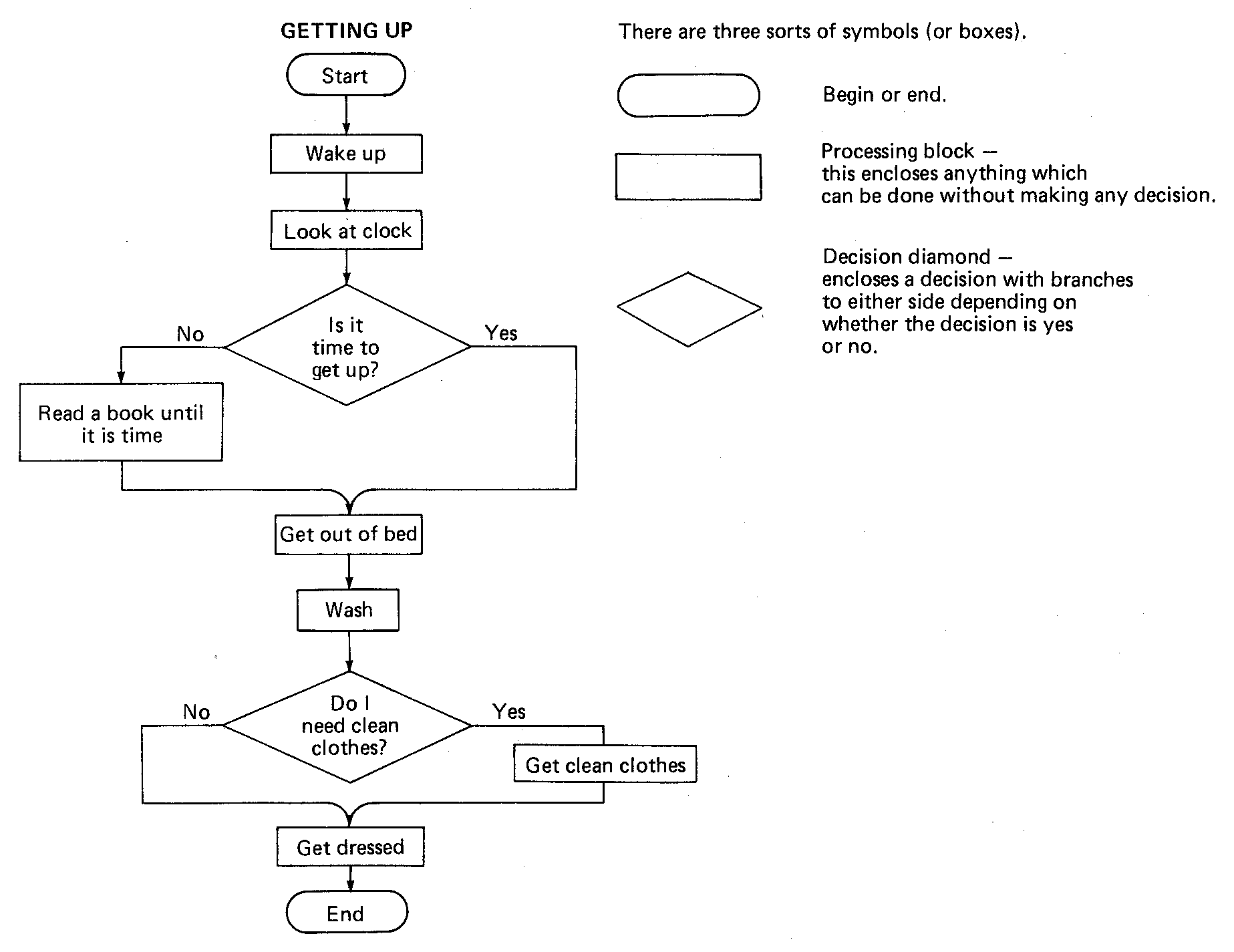
Let's consider a problem we face every day - getting up in the morning. There is a flowchart for getting up on the next page.
The program is said to branch at each decision diamond. As you can see, one feature of branches is that they allow some parts of the program to be skipped if they are not neccessary.
Programs can get difficult to understand if there are a lot of branches, and this is where flow diagrams help. |
It is a good idea to keep a pad or notebook handy when you are writing programs and an even better one to draw a flow diagram of your program before you start writing it!
Turn to the next chapter to find out how the ZX-80 can take decisions. |
page 43
page 44
CHAPTER 8
page 45
BRANCHING OUT
Before we go on to real decisions lets have a look at the GO TO statement.
This is of the form
GO TO n where n is normally a line number. It can be a variable, though only the ZX-80 BASIC has the power to do this.
When the ZX-80 comes to a GO TO statement it jumps straight to statement number n and executes that statement. If n is a variable - X, say - the computer will look at the value of X and jump to the statement with that number - assuming that there is a statement with that number in your program.
A further refinement of the GO TO statement is that n can be any integer expression such as A/10. Here again, this is possible with the ZX-80.
Here is a program which illustrates the use of GO TO.
10 PRINT "THIS IS STATEMENT 10" 20 GO TO 40 30 PRINT "THIS IS STATEMENT 30" 40 PRINT "END OF PROGRAM"
Now run the program. |
The computer responded with
THIS IS STATEMENT 10
END OF PROGRAM
It skipped statement 30. "That's not much use", you must be saying, "what's the point of .including a perfectly good statement which will never be executed?"
OK
Get back into command mode.
Now, type GO TO 30, and then NEWLINE.
The ZX-80 came back with
THIS IS STATEMENT 30
END OF PROGRAM
This demonstrates two uses of GO TO - first to jump unconditionally to an arbitary statement (in this case statement 40); second as a command which causes the computer to jump to the desired statement (in this case 30) and start executing the program from there. |
page 47
THE IF STATEMENT
This is the most powerful control statement in BASIC. It allows the user to incorporate decision-making into his programs.
Here is a program for calculating square roots approximately. It does this by multiplying, a number by itself, starting with 0 and compar-ing the result with the number whose square root is to be found. If the product is less than the number to be rooted it increases the number by 1 and tries again.
10 PRINT "SQUARE ROOT ROUTINE" 20 PRINT "ENTER THE NUMBER TO BE ROOTED" 30 INPUT X 40 LET J=0 50 LET K = J*J 60 LETD=X - K 70 IF D = 0 THEN GO (Use SHIFT 3 to TO 110 get THEN) 80 IF D < 0 THEN GO (< is SHIFT N) TO 130 90 LET J = J+1 100 GO TO 50 |
110 PRINT "THE ROOT IS"; 120 GO TO 140 130 PRINT " THE ROOT LIES BETWEEN (J - 1); "AND"; J 140 STOP
See the diagram on the next page.
The form of the IF statement is:
IF (CONDITION TO BE MET) THEN (DOTHIS) 70 IF D = 0 THEN GO TO 110
In line 70 the condition to be met was D = 0 and if this is so then J is exactly the square root of X, so we want to print THE ROOT IS J. In this case (DO THIS) is GO TO 110 which is the number of the PRINT statement we want.
In most BASIC's the only thing you can do in a IF statement is to GO TO a line number. The ZX-80 lets you do other things as well.
In fact it lets you do almost anything!
Some examples:
70 IF D = 0 THEN PRINT "NUTS"
70 IF D = 0 THEN INPUT G
70 IF D = 0 THEN LET A = 10 |
page 48

page 49
Any keyword can follow THEN in an IF state-ment - even things like LIST or RUN. The results can be rather peculiar if you use commands such as LIST. The examples listed above can be useful, though.
The condition to be met is (in its simplest version) of the form:
(Expression) (relational operator) (expression) This sounds rather a mouthful!
A relational operator can be:
equal to
less than
greater than
Examples
A = 2 A equal to 2
A< 10 A less than 10
A+B>C+D A+B greater than C+D
In these cases, A, 2, 10, A+B and C+D are the expressions.
The expressions need not be a simple integer or integer variable.
The statement IF A=Z - (Z/B) B THEN GO
TO 10 expression |
is quite valid, and so is IF A+B ) C+D THEN GO TO 20
The condition to be met can be even more complex because logical operators can be used.
For example
10 IF NOT A=2 THEN GO TO 100
logical operator
(use SHIFT 1 for NOT)
This NOT operator negates the succeeding condition, so that the ZX-80 will jump to 100 if A does not equal 2.
This program illustrates the use of the AND operator.
10 INPUT A 20 INPUT B 30 INPUT C 40 IF A=1 AND B=1 AND C=1 THEN PRINT
"OK"
Another logical operator
(Use SHIFT 2 for AND)
The condition to be met is that ALL three variables must be 1; if this is so it will print OK. You can chain together as many conditions as you like in this way. Try running this program |
page 50
and see if you can make it print OK in any way other than by entering three 1’s.
The other logical operator is the OR operator.
Edit the program by changing the AND'S to OR's (OR is SHIFT B).
When you run the program now you will find that it prints OK as long as one of the numbers entered is a 1.
You can use brackets to group things together.
Consider the following statements:
(a) 40 IF A=1 OR B=l AND C=l THEN
PRINT "OK"
(b) 40 IF (A=1 OR B=1) AND C=l THEN
PRINT "OK"
If you remember, in chapter 6 we said that some operators had priority over others - multiplications were carried out before divisions or additions, for instance. The same applies to logical operators.
Their priority (in descending order) is
NOT
AND
OR |
Thus, in (a) B=1 AND C=1 is taken first, so that the computer will print OK if B AND C are 1 'but will also print OK if A=1. The brackets in (b) work in the same way as they did for arith-metic operators. Thus the ZX-80 will print OK if C=1 and either B=l or A=1.
The operators NOT, AND and OR also allow you to produce conditional expressions. For example, if you require
X=3 if A>B
X=Q+R if A=B
X=P if A<8
The obvious way is:
110 IF A>B THEN LET X=3 120 IF A=B THEN LET X=Q+R 130 IF A<B THEN LET X=P
However you could instead write:
110 LET X=A>B AND 3 or A=B AND Q+R
OR A<B AND P
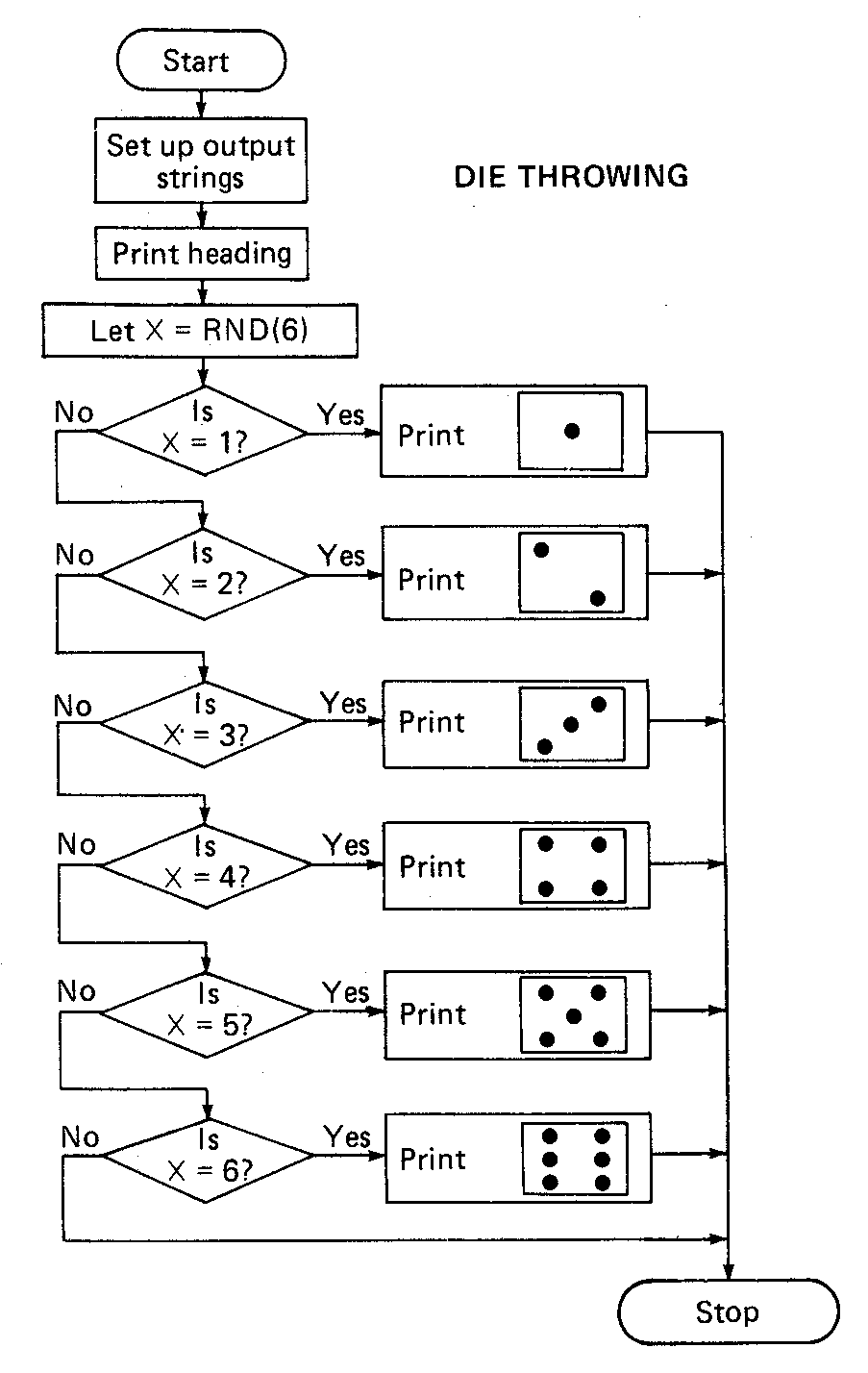
To round off this chapter on branching, here is a program which throws a die. The program uses a useful facility, the function
RND(X)
This generates a random number in the range 1 |
page 51
page 52
610 PRINT B$ 615 PRINT E$ 620 PRINT A$ 630 GO TO 1000 700 PRINT A$ 705 PRINT E$ 710 PRINT A$ 715 PRINT E$ 720 PRINT A$ 1000 STOP
It's a bit of a strain to enter this program but it's quite fun to run.
Note that lines 140 to 190 could have been replaced by
140 GO TO (X+1) * 100
If you want to make the program restart itself try editing the program:
1000 PRINT "HIT NEWLINE TO THROW AGAIN" 1100 INPUT X$ 1200 CLS (CLS is on key C) 1300 IF X$ = "" THEN GO TO 120 |
|
page 53
Two points: CLS clears the screen. If you didn't put this in the screen would fill up after 3 goes and the program would stop, giving an error message such as 5/305 (run out of screen at line 305).
Secondly, the use of a INPUT statement to halt program execution is a useful trick. The string variable X$ is used in statement 1300 when it is tested to see that only NEWLINE has been pressed; any other entry will stop the program (There is nothing between the quotation marks in 1300.)
The reason that there is a IF statement at 1300 rather than a GO TO statement is that, while the ZX-80 is waiting for a string variable to be entered, the BREAK key (SHIFT SPACE) doesn't work, As a result it is difficult to get out of the program except by entering a very long string variable, a variable so long, in fact, that it makes the computer run out of storage space. This is very tedious, so it's better to use the IF statement. Then if you enter any character the program will stop.
(If you do ever get into a situation when nothing you do seems to have any useful effect on the computer, try the BREAK key first. If this has no effect, give in and switch the ZX-80 off for a few seconds. You lose the current program, but |
this may be inevitable if you really have got yourself into a fix.) |
page 54
CHAPTER 9
page 55
ITER - WHAT?
Very often we come up against problems which involve repeated operations. The square rooting program in chapter 8 was one example of such a problem, and the program was written so that the computer jumped back to line 50, if the test conditions in statements 70 or 80 were not met, and tried again - and again - until the conditions were met.
Programs of this sort are called iterative. By using iterative techniques it's possible to get the computer to do a lot of work with a very short program.
It's easy to make a program iterative - all you have to do is to put a GO TO statement at the end of the program to jump the computer back to the first statement (or any other suitable statement). One snag is that such iterative programs can get stuck in endless loops.
One way to avoid this is to allow the computer to go round only a set number of times. One way of doing this would be to use IF and GO TO statements.
Consider the following program which prints $ 152 times. |
10 LET J= 1 20 PRINT "$"; 30 IF J = 152 THEN GO TO 60 40 LET J = J+1 50 GO TO 20 60 STOP
First the program sets J (the loop control variable) to 1. Then it prints $. Then it tests to see if J = 152. It isn't and so the computer goes on to line 40 which increments the value of J by 1 to 2. The computer passes on to 50 which tells it to jump back to 20. This process goes on until J = 152 when the IF statement is satisfied and the computer jumps out of the loop to line
60.
The arrows on the program help you to see where the program is going; for short programs this is quicker than drawing a flow diagram and does make it easier to see what the program is doing.
The program took 5 lines (if you don't count the STOP statement, which doesn't actually do anything - it just serves as a target for the GO TO in line 30. |
page 57
Loops are so useful that you'd have thought that there was an easier way of writing programs using them. Well there is. Turn to chapter 10. |
page 58
CHAPTER 10
page 59
LOOPING THE LOOP
Because loops are so useful some special state-ments have been devised to make it easy to use them.
Program for printing $:
10 FOR J = 1 TO 152 (use SHIFT 4 for TO)
20 P R I NT "$";
60 NEXT J
In chapter 9 it took 5 lines of program to get the same result using IF and GO TO statements.
Note the; after the PRINT statement. This tells the computer to print each $ immediately after its predecessor. Try running this program. It's a pity that one can’t have a dollar bill for each $ sign printed.
In BASIC these loops are normally called FOR loops. They are also widely known as DO loops (because other languages,. such as FORTRAN, use DO instead of FOR).
There is nothing to stop us from putting a loop inside another loop - or putting several loops in: |
Add the following lines to the program:
30 FOR I =1TO3 40 PRINT "£" 50 NEXT I
The flowchart for this program is:

|
page 61
You can jump out of a loop at any time. If you do this the loop control variable, will remain at whatever value if had got to when you jumped out. In our case the loop control variables were J for the major loop and I for the minor loop.
Try jumping out of the major loop at J = 100 add:
15 IF J = 100 THEN GO TO 1000
1000 STOP
Run this. You'll see that you get fewer $'s and £'s. Get into command mode.
Now type PRINT J NEWLINE
The computer responds with 100
This shows two things
1. J was l00 when the program jumped out of the loop and stopped.
2. You can use PRINT to find out what state the control variables (or other variable) were in when the program stopped. This is especially useful when you are debugging programs.
If the loop is completed successfully for all values of J up to 152 (in this case) the control variable will be left at 153. This is because the NEXT J statement not only tests the value of J |
but also increments J by 1. Some BASIC's allow you to increment the control variable by other amounts, but this isn't possible on the ZX-80 (It’s not a very useful feature anyway.)
All this is quite straightforward.
control variable starting value finis ing value defines what variable you want to use, what value it should start at and at what value of control variable you want to leave the loop.
NEXT J reminds the computer that it is in a loop and tells it what variable it should be testing and (in fact) where it should jump back to if the loop isn't finished.
You can start at any value you like - try starting at J = 100. The computer will go round the loop M - N + 1 times.
DON'T EVER jump into a loop unless you have just jumped out of it - if you do the computer will skip the FOR statement and will get very confused because it won't know what the control variable is, what it should start at and what it should finish at. It will do the best it can but it will probably stop when it gets to the NEXT statement. The error message will be of the form |
page 62
1/LINE No. where 1 means "no FOR statement to match this NEXT statement", or 2/LINE No. where 2 means "variable name not found".
You can try this by adding to the program:
5 GO T0 20
and running, and then adding
4 LET J = 4
and running (you must say RUN, not GO TO 4).
This will jump the ZX-80 into the major loop and it will stop when it gets to statement 60 (NEXT J) giving the error message 2/60 or 1/60.
In chapter 6 there was a program to divide one number by another to give a quotient to 3 decimal places.
Here is a program to give any number of decimal places. Statement 10 is a remark. The computer disregards REM ‘statements when it executes programs. It's often useful to put comments and remarks into programs so that you can remind yourself what the program does when you look at it, often months later!
10 REM HIGH PRECISION DIVISION 20 PRINT "HOW MANY DECIMAL
PLACES?" |
30 INPUT D 40 PRINT "DIVIDEND?" 50 INPUT R 60 PRINT "DIVISOR?" 70 INPUT Y 80 LET Z = R/Y 90 LET R = R - Z"Y 100 PRINT "QUOTIENT IS "; Z; "."; 110 FOR J = 1 TO D 120 LET Z = 10 R/Y 130 LET R = 10*R-Z*Y 140 PRINT Z; 150 NEXT J (110 to 150 evalu- ate successive decimal places un- til the program has produced D decimal places
Try running this, first of all with dividend = 1, divisor = 3, D = 100 (say).
Note line 110
110 FOR J =1 to D
The starting and finishing values can be variables. This means that you can control the starting value and finishing value of the loop variable as you wish. The starting and finishing values can also be expressions of the form D/2, (D+1)*5 or indeed any other arithmetic expression. |
page 63
110 FOR J = D*10 TO D*200 would be quite legal. However, the name of the control variable must be a single letter.
If you do decide to use several FOR loops, one inside the other, be very careful in the way you go about it.

is definitely not all right and could cause major problems. Another good reason for using flowcharts! |
One final point: because the control variable is effectively tested and incremented by the NEXT statement the main part of the loop will always be executed at least once regardless of the value of the control variable even if you have jumped into the loop.
SUBROUTINES
A subroutine is a sub-program which may be used once or many times by the program (or main program).
Example:
10 FOR J =1 TO 10
20 GO SUB 1000 (GO SUB is on key V)
30 NEXT J
40 PRINT "END"
900 GO TO 1200
1000 PRINT "SUBROUTINE EXECUTED"
1100 RETURN (RETURN is on key B)
1200 STOP
Statement 20 tells the computer to GO TO the subroutine at line 1000. |
page 64
This prints:
SUBROUTINE EXECUTED
Statement 1100 tells the computer that the subroutine is finished and that it should return to the main program. The computer then jumps to the line immediately following the GO SUB statement and executes that (in this case: NEXT J).
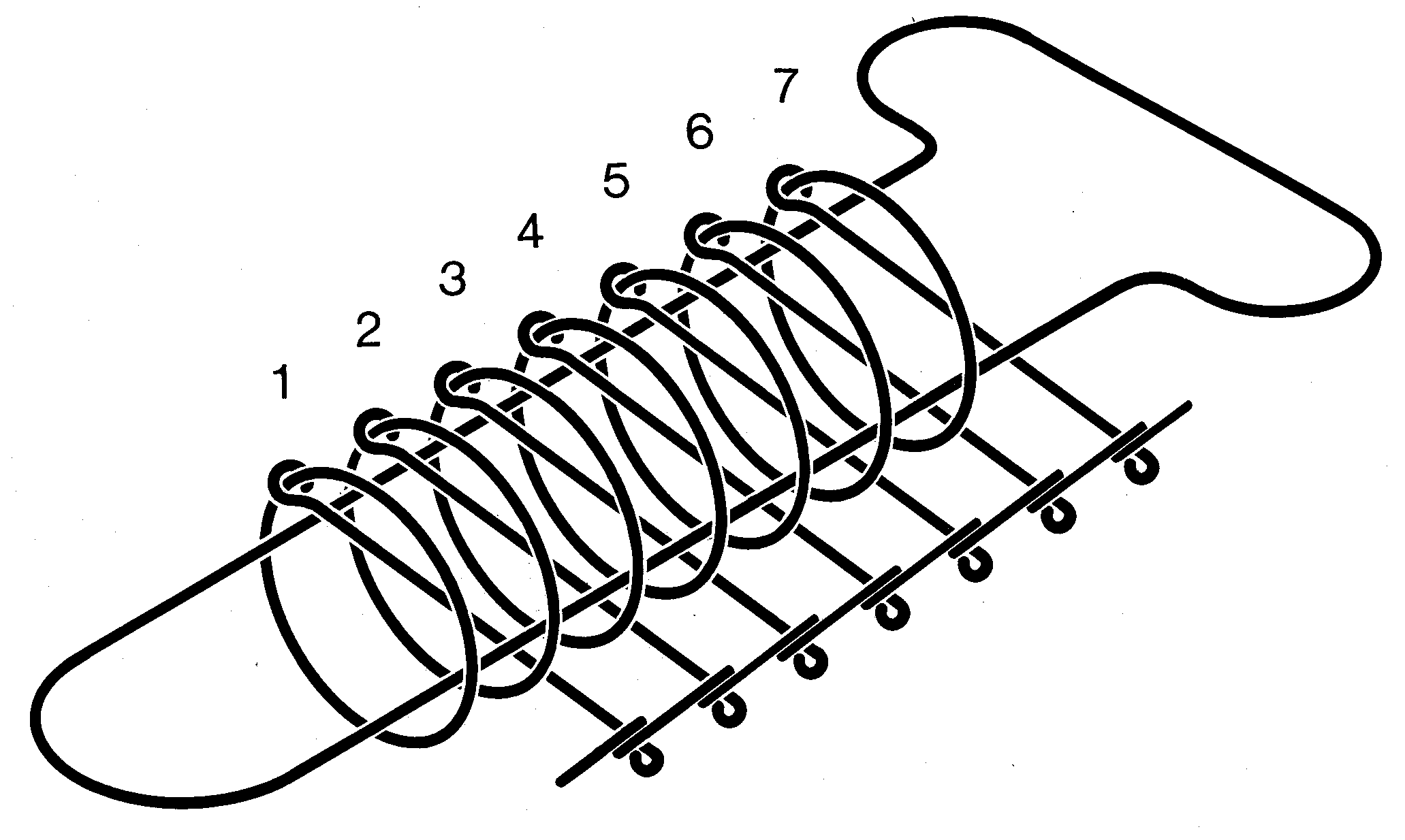
An example of the use of subroutines is given below: The Chinese Ring Puzzle.
As you will see, one subroutine can call another, or even call itself (this is called recursion),
THE CHINESE RINGS PUZZLE
This is a program which will say what moves are required to remove N rings from the T-shaped loop.
The mechanics of this wire puzzle are not important - roughly speaking one manipulates the rings until they all come off the loop.
For an arbitrary number of rings the rules are as follows:
1. Each ring can be either on the loop or off it. |
2. Only one ring may be moved (from on to off
or vice versa) at a time.
3. The first ring may be moved at any time.
4. The ith ring (i>1) may be moved if and only if:
(a) All the rings numbered i-2 or lower are
off.
(b) R ing i-1 is on.
...the rings higher up the loop (number )i) may
be in any state, so:
To remove the first i rings:
1. Remove the first i-Z rings
2. Remove the ith ring
3. Replace the first i-2 rings
4. Remove the first i-1 rings
To replace the first i rings:
1. Replace the first i-1 rings
2. Remove the first i-2 rings
3. Replace the ith ring
4. Replace the first 1-2 rings
CHINESE RINGS (Recursive procedure)
10 INPUT N
20 GO SUB 100
30 STOP |
page 65
Chinese Ring Puzzle
page 66
100 IF N<1 THEN RETURN
120 LET N=N - 2
130 GO SUB 100
140 PRINT N+2; "OFF",
150 GO SUB 500
160 LET N = N+1
170 GO SUB 100
180 LET N = N+1
190 RETURN
500 IF N<1 THEN RETURN 520 LETN=N - 1
530 GO SUB 500
540 LET N=N - 1
550 GO SUB 100
560 PRINT N + 2; " ON",
570 GO SUB 500
575 LET N = N+2
580 RETURN
Your output for the case N = 4 should look like:
2 OFF 1 OFF 4 OFF 1 ON
2 ON 1 OFF 3 OFF 1 ON
2 OFF 1 OFF |
The GO SUB statement can be used in conjunction with a variable, e.g.
10 GO SUB G whereupon the computer
will jump to the subroutine at line whose number is the value of G (if there is such a line).
As before, an expression can also be used.
In general it is not a very good idea to use variables or expressions in this way because the program may alter the variable in a way you hadn't foreseen and thus cause problems. |
page 67
CHAPTER 11
page 69
HOW TO PRINT
Up to now we have used the PRINT statement as and when it was needed to print out headings and variables. In fact PRINT is a very versatile statement indeed.
The general form of the PRINT statement is PRINT expression ch expression ch expression ch... and so on.
ch stands for control character and this can be , or ; or nothing at all (at the end of the statement only).
Expressions can be literal strings in quotes, e.g.
"THIS IS A LITERAL STRING"
or string variables such as A$
Alternatively they can be integer variables or arithmetic expressions, e.g.
A2 or B*2/C
The object of using control characters is to be able to control the spacing of the line to be printed. We've already come across the use of; in PRINT statements.
The program
10 LET X=4 |
20 PRINT "THE ANSWER IS"; X; "UNITS"
expression expression
control
characters
expression
Would print:
THE ANSWER IS4UNITS
The semi-colon (;) makes the computer print out the expressions without any spaces between them. If you want spaces you have to include then in the literal strings to be printed.
The comma (,) is used as a tab. Each display line of 32 characters on the screen is divided into 4 fields each of which is 8 characters in length. Each time the computer comes across a comma in a PRINT statement, it starts printing the next expression at the beginning of the next available field.
The effect of this is to provide a display on the screen in 4 columns. If a string variable or literal string is more than 7 characters long and is followed by a comma the computer uses two or more fields in which to print the string and starts the next expression at the beginning of the third field. |
page 71
You can add extra commas to skip fields:
PRINT "FIELD 1", "FIELD 2", "FIELD 3"
would produce the output
FIELD 1 FIELD 2 FIELD 3
but
PRINT "FIELD 1",,"FIELD 2", "FIELD 3"
extra comma
would produce
FIELD 1 FIELD 2 FIELD 3
this field skipped
The statement
PRINT "THIS IS A FIELD",,"FIELD1", "FIELD 2"
would produce
THIS IS A FIELD FIELD 1
FIELD 2
The computer used 2 fields for the first string, skipped a field and then continued. It runs out of fields on the first line and has to continue in the first field of the second line.
There is no limit to the number of fields you may skip using commas, (Unless you run out of display area, of course.) |
If you use a control character right at the end of a PRINT statement the next PRI.NT statement will obey the control character. For instance
10 X = 4
20 PRINT "THE ANSWER IS ";
30 PRINT X
will produce the output
THE ANSWER IS 4
If no control character occurs at the end of a line the next PRINT statement will start printing on a new line.
The best way of finding out about PRINT is to experiment with it. |
page 72
CHAPTER 12
page 73
COPING WITH CHARACTERS
You will have noticed that, in addition to the normal typewriter characters there are several other characters not usually found on a typewriter. In addition there are some usable characters not written on the keyboard.
Before we go on to investigate what characters can be printed, meet an interesting function:
CHR$(X) where X is a number, integer variable
or expression.
It is used mainly in conjunction with the PRINT statement.
CHR$(X) means "the character whose code is x"
Try this:
10 INPUT X
20 PRINT CHR$(X)
30 GO TO 10
What this program does is to ask for a number and then to print out the character whose code is the number entered. The codes lie between 0 and 255.
A useful program for listing the symbols is given below.
10 PRINT "ENTER CODE VALUE" |
20 INPUT X
30 PRINT X; "..."; CHR$(X)
40 PRINT
50 LET X = X+1
60 GO TO 30
This lists 11 symbols together with their codes, starting with the code entered at the start of the program.
Table of characters corresponding to different codes:
| Code |
Character |
Code |
Character |
| 0 |
space |
14 |
: |
| 1 |
null string |
15 |
? |
| 2 |
|
16 |
( |
| 3 |
|
17 |
) |
| 4 |
|
18 |
- |
| 5 |
graphics |
19 |
+ |
| 6 |
|
20 |
* |
| 7 |
|
21 |
/ |
| 8 |
|
22 |
= |
| 9 |
|
23 |
< |
| 10 |
|
24 |
> |
| 11 |
|
25 |
|
| 12 |
£ |
26 |
| 13 |
$ |
27 |
|
|
page 75
| Code |
Character |
Code |
Character |
| 28 |
Ø |
55 |
R |
| 29 |
1 |
56 |
S |
| 30 |
2 |
57 |
T |
| 31 |
3 |
58 |
U |
| 32 |
4 |
59 |
V |
| 33 |
5 |
60 |
W |
| 34 |
6 |
61 |
X |
| 35 |
7 |
62 |
Y |
| 36 |
8 |
63 |
Z |
| 37 |
9 |
64 to 127 |
? |
| 38 |
A |
128 |
Inverse space |
| 39 |
B |
129 |
Inverse quote |
| 40 |
C |
130 |
|
| 41 |
D |
131 |
|
| 42 |
E |
132 |
|
| 43 |
F |
133 |
|
| 44 |
G |
134 |
|
| 45 |
H |
135 |
|
| 46 |
I |
136 |
|
| 47 |
J |
137 |
| 48 |
K |
138 |
| 49 |
L |
139 |
| 50 |
M |
140 |
INVERSE £ |
| 51 |
N |
141 |
" $ |
| 52 |
O |
142 |
" : |
| 53 |
P |
143 |
" ? |
| 54 |
Q |
144 |
" ( |
|
| Code |
Character |
Code |
Character |
< TR>
| 145 |
Inverse ) |
172 |
Inverse G |
< TR>
| 146 |
" - |
173 |
" H |
< TR>
| 147 |
" + |
174 |
" I |
< TR>
| 148 |
" * |
175 |
" J |
< TR>
| 149 |
" / |
176 |
" K |
< TR>
| 150 |
" = |
177 |
" L |
< TR>
| 151 |
" > |
178 |
" M |
< TR>
| 152 |
" < |
179 |
" N |
< TR>
| 153 |
" ; |
180 |
" 0 |
< TR>
| 154 |
" , |
181 |
" P |
< TR>
| 155 |
" . |
182 |
" Q |
< TR>
| 156 |
" 0 |
183 |
" R |
< TR>
| 157 |
" 1 |
184 |
" S |
< TR>
| 158 |
" 2 |
185 |
" T |
< TR>
| 159 |
" 3 |
186 |
" U |
< TR>
| 160 |
" 4 |
187 |
" V |
< TR>
| 161 |
" 5 |
188 |
" W |
< TR>
| 162 |
" 6 |
189 |
" X |
< TR>
| 163 |
" 7 |
190 |
" Y |
< TR>
| 164 |
" 8 |
191 |
" Z |
< TR>
| 165 |
" 9 |
192 to 211 |
? |
< TR>
| 166 |
" A |
212 |
" |
< TR>
| 167 |
" B |
213 |
THEN |
< TR>
| 168 |
" C |
214 |
TO |
< TR>
| 169 |
" D |
215 |
; |
< TR>
| 170 |
" E |
216 |
, |
< TR>
| 171 |
" F |
217 |
) |
< TR>
|
page 76
| Code |
Character |
Code |
Character
|
| 218 |
( |
237 |
POKE |
| 219 |
NOT |
238 |
INPUT |
| 220 |
- |
239 |
RANDOMISE |
| 221 |
+ |
240 |
LET |
| 222 |
* |
241 |
? |
| 223 |
/ |
242 |
? |
| 224 |
AND |
243 |
NEXT |
| 225 |
OR |
244 |
PRINT |
| 226 |
** |
245 |
? |
| 227 |
= |
246 |
NEW |
| 228 |
< |
247 |
RUN |
| 229 |
> |
248 |
STOP |
| 230 |
LIST |
249 |
CONTINUE |
| 231 |
RETURN |
250 |
IF |
| 232 |
CLS |
251 |
GO SUB |
| 233 |
DIM |
252 |
LOAD |
| 234 |
SAVE |
253 |
CLEAR |
| 235 |
FOR |
254 |
REM |
| 236 |
GO TO |
255 |
? |
Inverse means that the character appears white on a black background.
Inverse space is a black square, for instance.
The graphics characters are shown on the next page:
CHR$ (X) allows us to print any character we want. |
There is a further group of facilities which enables us to handle characters;
These are
(a) TL$ (string)
- this gives the string minus its first character.
The string can be a literal string inside quotes or a string variable.
10 PRINT TL$ ("ABC") would give
BC
10 PRINT TL$(G$) will cut off the first character of string G$
(b) CODE (string)
- this gives the code corresponding to the first character in a string (either a string variable or a literal string)
10 PRINT CODE("ABC")
would print 38 which is the code for A,
An example of the way in which these can be used is the following program which accepts a string and prints it out in inverse video.
10 PRINT "ENTER YOUR STRING"
20 INPUT G$
30 PRINT G$ |
page 77

Table of Graphic Symbols
page 78
40 LET X = CODE (G$)
50 LET X = X + 128
60 IF G$ = CHR$ (1) THEN GO TO 100
70 PRINT CHR$ (X);
80 LET G$ = TL$ (G$)
90 GO TO 40
100 STOP
Statement:
40 sets X = code of the first character of G$.
50 adds 128 to the code (this gives inverse of the letters, digits and graphics).
60 test the string to see if it is a null string, i.e. has no characters in it. If it is a null string either the input string was a null string to begin with or all the characters have been converted to inverse video and printed.
70 prints the inverse video character.
80 chops off the character which has just been printed and the program then jumps back to 40 and the code for the next character is extracted. The program goes on until the string has been shortened to the null string.
There is a further function which can be useful. This is:
STR$ (variable or number). |
This allows an integer number or variable to be treated as a string variable
10 LET G$ = STR$(1234)
sets G$ = "1234"
10 LET G$ = STR$(X)
does the same thing for an integer variable - if X = 4852 then G$ = "4852".
So far we've not said very much about the graphics symbols. These have been designed so as to double the effective resolution of the display, which gives 23 lines of 32 characters each.
Here is a program which plots TWO bar charts on the same display. |
page 79
BAR CHART PLOTTER
10 LET X =0
20 PRINT "YZ-AXIS"
30 PRINT "X ="
40 FOR I = 1 TO 21
50 LETY=X
60 LETZ=24 - X
70 PRINT X,
80 FOR J=1TO20
85 IF J)Y AND J=Z THEN PRINT CHR$ (3);
90 IF J>Y AND J>Z THEN GO TO 135
95 IF J=Y AND J>Z THEN PRINT CHR$ (11);
100 IF J<Y AND J<Z THEN PRINT CHR$ (139);
105 IF J<Y AND J=Z THEN PRINT CHR$ (139);
110 IF J<Y AND J>Z THEN PRINT CHR$ (11);
115 IF J=Y AND J<Z THEN PRINT CHR$ (139);
Comment 10-70:
Defines Vari-
ables and
prints titles;
generates Y
and Z |
120 IF J>Y AND J<Z THEN PRINT CHR$ (3);
125 IF J=Y AND J=Z THEN PRINT CHR$ (139);
130 NEXT J
135 PRINT
140 LET X = X+1 150 NEXT I
The program prints Z as black bars, Y as grey bars. Statements 80 to 130 determine what graphic symbol is to be used:  , ,  , ,  or nothing at all. or nothing at all.
This program calculates the graphs of Y = X and Z = 24 - X and plots them in bar chart form. As you will see if you run the program it produces a very clear, unambiguous display You can use the same sort of trick to achieve greater resolution along the l inc as well as from I inc to line.
Lines 85 to 125 decide what character will be printed, depending on the relative size of J, Z and Y.
These examples are only scratching the surface when it comes to character manipulation and graphics, The possibilities are almost literally endless. |
page 80
CHAPTER 13
page 81
HELP! or "What to do when desperate"
You may occasionally get into difficulties.
These can be divided into two sorts: (a) Problems with the system (b) Problems with your programs.
Most problems with the system are likely to occur when you're entering string variables into your programs. One favourite is deleting the quotation marks round the string by accident. When the computer is waiting for you to enter a string variable it prints "".
If you enter the wrong string and then use RUBOUT to delete it you may delete one or other of the quotation marks. This will give rise to a syntax error symbol. If you see this check to see that both quotes are there.
If you have written a program which calls for a null string to be entered, and the program is recursive, you may find it very difficult to get out of the program back into command mode, Whatever you enter seems to have no effect! When (or if) this happens delete the quotes using RUBOUT RUBOUT and enter (say) CHR$ (10**6) which causes arithmetic overflow, giving a 6/N error message (when N is the line |
number of the INPUT statement reading the string).
Generally speaking the BREAIC key (SHIFT SPACE) is the first thing to resort to, If the program is caught in an endless loop, or if it is LOADing unsuccessfully, the screen will go grey or black for an indefinite period. BREAK will get you back under these conditions.
If BREAK does not work in this situation there is nothing left to do but switch the ZX-80 off for a few seconds and then switch on. You do lose whatever program was in the ZX-80 if you do this.
When it comes to faults in the program it is difficult to offer such specific advice.
Some problems arise if you type an O instead of a 0.
LET J = O would be accepted as a valid program line but would give a 2/N error code (variable not found) when the program was run. This sort of thing can be very difficult to spot. Similarly S and $ do get confused.
When a program stops unexpectedly or does something peculiar it may be difficult to work out exactly what went wrong. It is possible to carry out a post-mortem by using the immediate |
page 83
PRINT statement to find out what the value of variables (especially loop control variables) was at the time the program stopped.
If you type
PRINT J (or whatever variable you want)
the ZX-80 will print it even after the program has stopped running.
Sometimes there is not room to print the whole of the line number in an error message, particu-larly with error numbers 4 and 5. In this case usually only the first digit of the line number is printed. For example, error 4 on line 250 may cause the message
4/2
Another useful technique is to put STOP statements into programs at key points. When the program reaches the STOP statement it will stop (of course) and you will be able to see how it has performed up to that point, You can then get back into command mode, type CONTINUE (key T) NEWLINE and the program will continue from the STOP statement.
Luckily the ZX-80 is quite choosy about the program lines it will accept and this eliminates many of the problems which can happen with other BASIC's. |
|
page 84
CHAPTER 14
A RAGBAG OF FUNCTIONS
page 85
A RAGBAG OF FUNCTIONS
This chapter covers all those statements and functions that haven't already been dealt with elsewhere.
RND(X) provides a random number in the
range 1 to X
Typical statement using RND: 10 LET J = RND(X)
sets J equal to a random number
Every time the ZX-80 executes the function RND it uses a random number generator to generate a pseudo-random number. It is called pseudo-random because the numbers occur in a fixed sequence, However, the sequence is very long and hence appears random.
RANDOMISE - sets the starting point of the
sequence to a number equal to the number of frames supplied to the TV since the machine was turned on (unless POKE is used to alter the count, see below).
RANDOMISE n - sets the starting point of the
sequence to n unless n is 0,
|
when it behaves as RANDOM-ISE.
The RANDOMISE statement allows the random
sequence to be initialised at any time in the program. Typical forms:
10 RANDOMISE 6
10 RANDOMISE
RANDOMISE n (n =/= o) generates a sequence
depending only on the value of n (which will be thesamefromrun to run if n is unchanged).
RANDOMISE generates a different sequence
each time.
One highly useful statement is POKE,
This is of the form
POKE A,B where A is the ADDRESS of a
location in store and B is an expression (the value of which should be less than 256 for sensible results).
Typically A might be the address of one of the two bytes which form the variable which acts as the frame counter. This is demonstrated in the next example program. |
page 87
|
Thus:
LET X = PEEK (A) sets X equal to the contents
of address A
PEEK (A) is always less than 256
(in range 0 to 255)
The reason that the variables associated with PEEK and POKE should always be less than 256 (255 is maximum) is that everything in the ZX-80 is stored in 8 bit bytes. Bit is short for Binary digit. The maximum which can be stored in 8 bits is 255, and so all the integer variables use up 2 bytes, which allows numbers up to 32,767 to be stored.
Each half of a variable is stored in one byte, and every byte has an address of its own.
Here is a program which uses PEEIC and POKE to gain access to the TV frame counter.
PEEK/POKE REACTION TIMER
10 FOR I = 1 to 20 RND(100)
20 NEXT I
POKE 16414,0
40 POKE 16415,0 |
50 PRINT "HIT RETURN"
60 INPUT C$
70 LET A = PEEK (16414)
80 LET B = PEEK (16415)
90 PRINT "YOUR REACTION TIME WAS";
(B*256 + A - 4) *20; "MILLISECS"
16414 and 16415 are the addresses of the two halves of a 16 bit number which counts the frames on the TV - increasing by 1 every 1/50th of a second. Lines 30 to 40 set the count to zero, and the count is stopped when a null string is input to C$. There is a delay on all operations (mainly between pressing the return key and this signal getting to the CPU) of around 80 mS, hence the 4 subtracted from the expression in line 90.
This could have a repeat mechanism tacked on the end, for example:
100 PRINT "DO YOU WANT ANOTHER GO?"
110 PRINT "TYPE Y OR N"
120 INPUT C$
130 IF C$ = "Y" THEN GO TO 10
140 STOP
Another function which allows the user to communicate directly with the ZX-80 is |
page 88
USR(A) - this calls a machine-code subroutine
at the address A. The value is what-ever the routine leaves in HL (a storage register within the central processor of the ZX-80) or, if the subroutine has not altered HL, the result is A
Typical form: LET J = USR(A)
PEEK, POKE and USR(A) are really facilities provided for very experienced users who under-stand the detailed working of the ZX-80.
CLEAR is a statement which resets all the variables in the program.
Typical form: 10 CLEAR
{RUN automatically clears the variables every-time a program is run.)
And now, last' but not least, DIM. This is of the form
10 DIM A(B) - sets up an array A which
contains B+1 variables.
Each variable is called an element of array A.
Arrays can have any single-letter name and can have any number of elements (providing that there is enough room to store all the elements). |
It is possible, though not a good idea, to have a variable and an array with the same name example:
10 LET A =4
20 DIM A(A)
Each element is referred to by its subscript. For instance
B(0) is the first element of array B
B(2) is the third element of array B
B(N) is the (N+1)th element of array B.
Because you can use any integer expression as a subscript it is possible to process array elements easily and quickly.
Here is an example of the use of arrays for character manipulation.
CHEESE NIBBLER
10 DIM A(10)
20 DIM B(10)
30 DIM C(10) |
page 89
100 FOR J = 1 TO 10
110 LET A(J) = 1
120 LET B(J) = 1
130 LET C(J) = 1
140 NEXT J
200 FOR J = 1 TO 10
205 IF NOT A(J) = 1 THEN GO TO 220
210 PRINT " "; ";
215 GO TO 230
220 PRINT" ";
230 NEXT J
240 PRINT
300 FOR J=1 TO 10
305 IF NOT B(J) = 1 THEN GO TO 320
310 PRINT ""
315 GO TO 330
320 PRINT" ";
330 NEXT J
340 PRINT
400 FOR J=1 TO 10
405 IF NOT C(J)=1 THEN GO TO 420 |
410 PRINT ""
415 GO TO 430
420 PRINT" ";
430 NEXT J
440 PRINT
445 PRINT "HIT NEWLINE TO NIBBLE THE
CHEESE"
450 INPUT Y$
460 IF NOT Y$ = " "THEN GO TO 1000
470 CLS
500 LET I = RND(10)
510 LET K = RND(3)
520 IF K = 1 THEN LET A(I) = 0
530 IF K = 2 THEN LET B(l) = 0
540 IF K = 3 THEN LET C(l) = 0
550 GO TO 200
1000 STOP
When typing in a program like this where there are several similar lines the EDIT facility is very useful, because you can edit line numbers. |
page 90
For example; after entering line 210, type:
EDIT
RUBOUT
3
NEW LINE
Statements 10 to 30 set up 3 arrays, A, B, and C of 10 elements each.
Statements 100 to 140 set all the elements of all arrays to 1.
200 to 240 examine each element of the array A in turn. If an element is equal to 1 a is printed. If an element is not 1 a space is printed.
Similarly for 300 to 340 and 400 to 430.
On the first pass all the elements are set to 1 and
is printed all the way through.
445 to 470 print the instruction and if the user then hits NEWLINE the screen is cleared.
500 to 540 select a random element of a random array to be set to 0.
At 550 the program jumps back to print out all |
the arrays. The element which has been set to 0 is printed as a space - or nibble.
As more nibbles are taken there is a greater chance that the element selected will already be 0 and thus the effective nibble rate slows down as the game progresses.
ABS(n) this function gives n if n>=0, and -n if
n<0. n is any integer expression.
e.g. ABS(5) = 5
ABS( - 5) = 5
|
page 91
CHAPTER 15
page 93
OVER TO YOU
If you have read all the way through this book, running the programs in it and writing your own, you should be well on the way to becoming a fluent BASIC programmer. Remember, though, that there are many things you can do with ZX-80 BASIC which you can't do using other BASIC's. Equally, some BASIC's have features which are not present in ZX-80 BASIC.
The appendices present a concise summary of the error codes and the ZX-80 BASIC. Section 2 of Appendix 2 is written with experienced users in mind, but most of it does not require a detailed knowlege of the working of the central processor.
From now on it's up to you! |
|
page 95
APPENDIX I
page 97
ERROR CODES
When results are displayed, a code
n/m
is displayed also: n is the error number, m is a
line number in the program
stmt code meaning type (m = next line that would have been executed) BREAK pressed. (m = - 1 or - 2) Command suc- cessfully completed. 0 (m < 0 or ) largest line number in program) GO TO m was executed. (m = largest line number in program) end of program. NEXT 1 * NEXT <id> where <id> is not the control variable of an active FOR loop. any 2 * variable name not found (any variable being used, or array name of an array element being assigned to). any 3 * subscript out of range, or error of any kind while evalu- ating a subscript.
|
stmt code meaning type LET 4 * no room to add new variable INPUT or to assign a longer string to a DIM string variable or to screen. PRINT PRINT 5 * no more room on screen. any 6 arithmetic overflow (result > 32767 or < - 32768, also result = - 32768 in some circumstances. RETURN 7 * RETURN with no corres- ponding GOSUB. INPUT 8 INPUT can only be used in a program, not directly. STOP 9 STOP statement executed. * m = line number of offending statement. CONTINUE is the same as GO TO m, except after code 9 when it is GO TO m+ l.
|
page 99
APPENDIX II
page 101
4K BASIC FOR ZX - 80
1. ZX-80 user's view.
(a) Program Listing
The user inputs via the keyboard, lines of BASIC for insertion into the program and commands for immediate execution. While he is doing this he sees a display which is divided into two parts: the upper part is a "window" on the program listing, while the lower part displays the line or command he is currently outputting. Normally, the lower part is large enough to hold the whole line (which will take more than one screen line if it contains more than 32 characters), there is a blank line between the two parts, and the upper part occupies the remainder of the screen. If, however, there is insufficient RAM to hold a display of this size (each character on screen occupies 1 byte of RAM* ) the upper part of the display will be shrunk line by line until the display file is small enough. When the upper part has disappeared altogether the lower part shrinks character by character.
The computer maintains a "current line number"
* RAM stands for random access memory, or store. |
for editing the program and the display is always organised so that the line with that number, or the preceding line if no line with that number exists, is on the screen if at all possible. If there is a line with the current number, it is displayed with a symbol consisting of a reverse video between its line number and the text of the line; if there is none then the reverse video will not appear.
Three keys are provided for changing the current line number: "" changes it to the line number of the preceding line, "" changes it to the line number of the following line, and "HOME" resets it to zero. If there is no preceding line sets it to the line number of the first line in the program; similarly "" will set it to the last line.
There are two other ways which the current line number can change: inserting a line into the program sets it to the line number of that line, and the command "LIST n" will set it to n.
When the current line is off the top of the screen, the window maves up so that it becomes the first line. When it is at or just off th.e bottom the window moves down a line. If it is well beyond the bottom of the window, the window moves down so that it becomes the second line on the screen. |
page 103
(b) Input area
The lower part of the screen contains the line the user is currently typing in. This line may be a command or a line of program; in the latter case it will begin with a line number (in the range 1 to 9999) and in the former case there should be no number, although zero in practice counts as "no number" here.
Somewhere in the line a "cursor" is displayed. This indicates two things: the position in the line where symbols will be inserted, and whether an unshifted alphabetic key will be treated as a keyword (eg "LIST") or a letter leg "A"). The cursor is in the form of an inverse video for keywords or for letters.
Note that this cursor, although displayed in the line and occupying a character position on the screen, does not form part of the line and is ignored by anything interpreting the line.
A second symbol, similar in principle to the cursor, may also be displayed: this is in the form of an inverse video and indicates that the line is not a syntactically correct BASIC state-ment. It is positioned such that the part to the left of it could be the beginning (or the whole) of a syntactically correct BASIC statement eg if "20 LET A = B + 5" |
is input from left to right then. symbol will be displayed at the end of
20 LET and be absent from 2
20 LET A 20
20 LET A= 20 LET A=B
20 LET A=B+ 20 LET A=B+5
In most cases the symbol is displayed as far to the right as is consistent with the above descrip-tion; however there are a few circumstances where this is not quite so, for instance in
LET A=ASC("X")
although "LET A=ASC" is a syntactically correct statement (ASC here being an integer variable) the is not displayed after "ASC" but rather before it. This is because "ASC(...)" has already been identified as a function call, but as no built-in function with the name "ASC" is available it is faulted. Having identified it as a function call, however, the computer does not then consider other possible parses.
The following keys are available to alter the
input line:
(i) single-character symbols: letters, digits,
punctuation, etc the symbol is inserted to
the left of the cursor.
|
page 104
(ii) multi-character "tokens": "**", "AND",
"OR", "NOT", "TO", "THEN" keywords.
Each of these is stored in the computer as a single byte, which, as in (i), is inserted to the left of the cursor. However, they appear on the screen as more than one character. Those that are alphanumeric (ie all except "'") are preceded and followed by a space, the preceding space being omitted (a) at the beginning of the line (b) where it follows another alphanumeric token. (This rule means that programs appear well-laid- out on the screen without using up scarce RAM space for explicit space characters. Inserting an explicit space character before or after an alphanumeric token always inserts one extra space in the displayed form.)
"RUBOUT" deletes the symbol or token
to the left of the cursor,
(iv) cursor control keys "" and "" skip the
cursor past the next symbol or token to the right and left respectively.
(v) "EDIT" replaces the input line with a copy
of the current line from the program. If no line has the current line number, the first line after it is used. If the current line is after the last line in the program, the last line is used. If there are n,o lines of program
|
at all, then an empty line is used. Note that any existing input line is lost; "EDIT" followed by "NEWLINE" is in fact the quickest way to get rid of an unwanted line, but beware typing "EDIT" in mistake for "NEWLINE"!
(vi) "NEWLINE" is ignored if the inverse video
symbol is present. Otherwise it marks the end of input and the line or command is submitted to the system (see next section). Note that the whole line is sub- mitted, not just the part to the left of the Cursor.
(c) After input
When a line with a nonzero line number is sub-mitted to the system, it is inserted into the program, any existing line with the same number being first deleted. The input area is then cleared. A special case is where the new line consists only of a line number, possibly preceded by spaces: the existing line (if any) is deleted but nothing replaces it and it therefore simply disappears from the listing. The "current line number" is still set to its number, however, so the inverse video disappears also (see (a) above). If the line being inserted has one or more spaces after the line number but no other symbols or tokens, |
page 105
it is still inserted in the program and appears in the listing as a line which is blank except for its number; when the program is run such lines are ignored.
A line which has no line number, or which has line number zero, is a "command" and is obeyed immediately. For as long as it takes to obey the command (which for most commands is very brief) the screen is blank, then on completion the upper part of the display contains any output generated and the lower part contains a display of the form
m/n
where m is a single digit and n is "-2" for most commands.
If m = 0, execution was successful; if m = 9 a STOP command was executed; otherwise m is an error code (see Appendix I).
Where a command (RUN, GO TO, GOSUB, CONTINUE) has caused the program to be entered, n is the line number of the offending instruction if m is an error code (exception: if the error is in a GO TO or GOSUB then n may be the target of the jump), the line number of the STOP if m = 9, and the line number of the last line in the program if m = 0. Except in the case of m = 0 or m = 9, CONTINUE is a jump to |
line number n (but see3(c)). If m=9, CONTINUE is a jump to line number n+1.
Sometimes only the first digit of n is displayed because there is no room in the RAM for any more display file. For example beware confusing line number 240, of which only the first digit is displayed, with line number 2.
A jump to a line number which is beyond the end of the program, or greater than 9999, or negative, gives m=0, n= the line number jumped to.
The commands are described individually in section 3.
2. Computer's view
N.B. 35h means Hexadecimal 35 (35h=3*16+5 =53. 0Ah to 0Fh are the decimal numbers 10 to 15.
(a) RAM
The contents of the RAM are:

|
page 106
The first area is fixed in size and contains various "system variables" which store various items of information such as the current line number, the line number to which CONTINUE jumps, the seed for the random number generator, etc etc. Those that could possibly be useful with PEEK etc have been documented elsewhere (Appendix 3).
An important subset of the system variables are the five contiguous words labelled VARS to DF_END which hold pointers into the RAM and define the extent of the remaining areas (apart from the stack).
The program consists of zero or more lines, each of the form

ie beginning with the line number (stored ms byte first contary to the usual practice on | | |

